> For the complete documentation index, see [llms.txt](https://iptuns.gitbook.io/docs/llms.txt). Markdown versions of documentation pages are available by appending `.md` to page URLs; this page is available as [Markdown](https://iptuns.gitbook.io/docs/di-san-fang-ji-cheng/zhi-wen-liu-lan-qi-ji-cheng/zi-niao-liu-lan-qi-ji-cheng-shi-yong-jiao-cheng.md).
# 紫鸟浏览器集成使用教程
{% hint style="warning" %}
平台的所有代理产品均需要在海外网络环境下使用,海外网络环境需要客户自行配置。
{% endhint %}
本教程将介绍如何在 **紫鸟指纹浏览器** 中配置 **Iptuns** 代理IP,实现安全、隔离的多账号操作环境。
{% hint style="info" %}
动态住宅IP的使用方式和静态住宅IP的使用方式一样
{% endhint %}
#### 步骤一:下载并安装紫鸟指纹浏览器
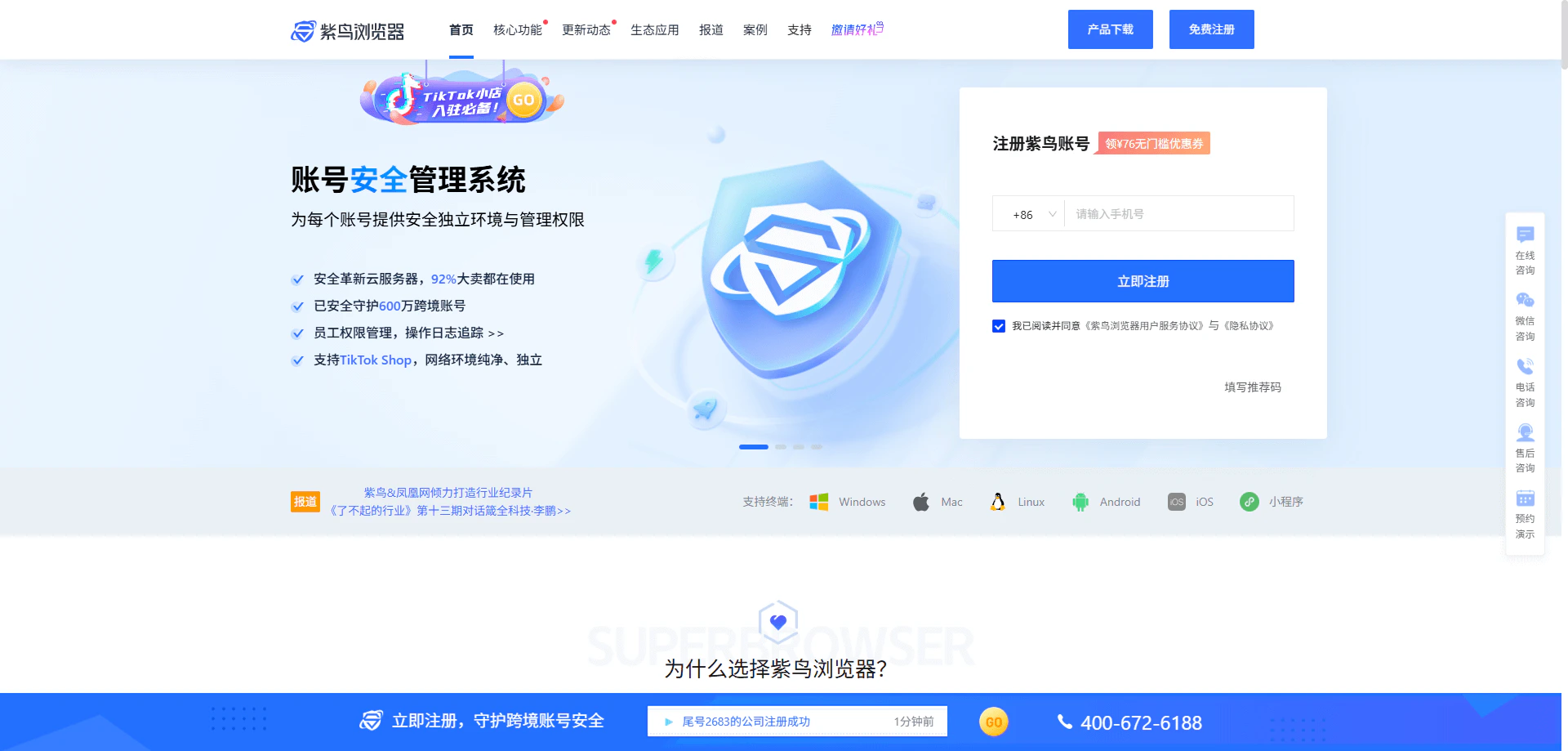
访问 **紫鸟指纹浏览器官网** ,注册账号并下载客户端,完成安装后启动软件。
 #### 步骤二:进入设备管理页面
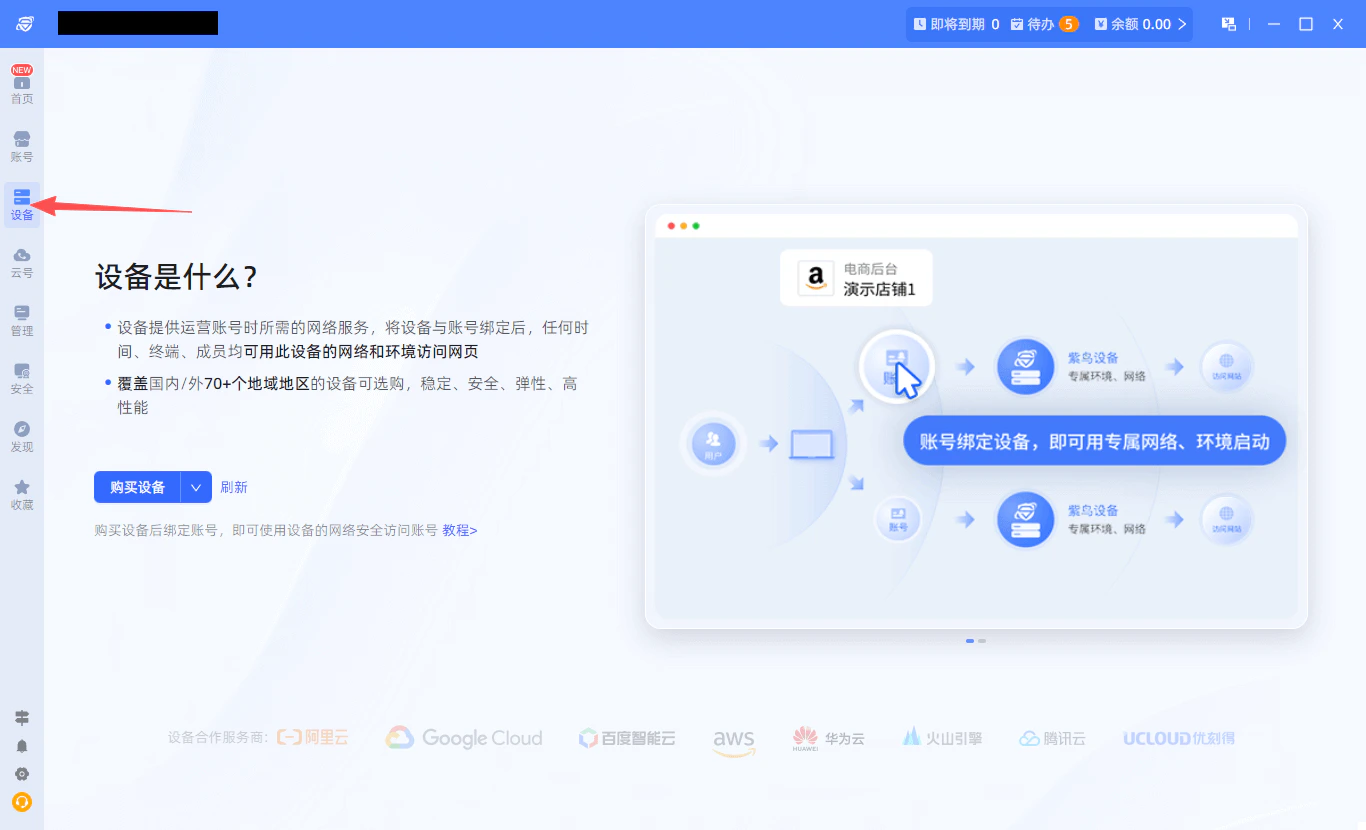
打开客户端后,点击左侧导航栏中的 **设备** 菜单,进入设备管理界面。
#### 步骤二:进入设备管理页面
打开客户端后,点击左侧导航栏中的 **设备** 菜单,进入设备管理界面。
 #### 步骤三:添加自有设备
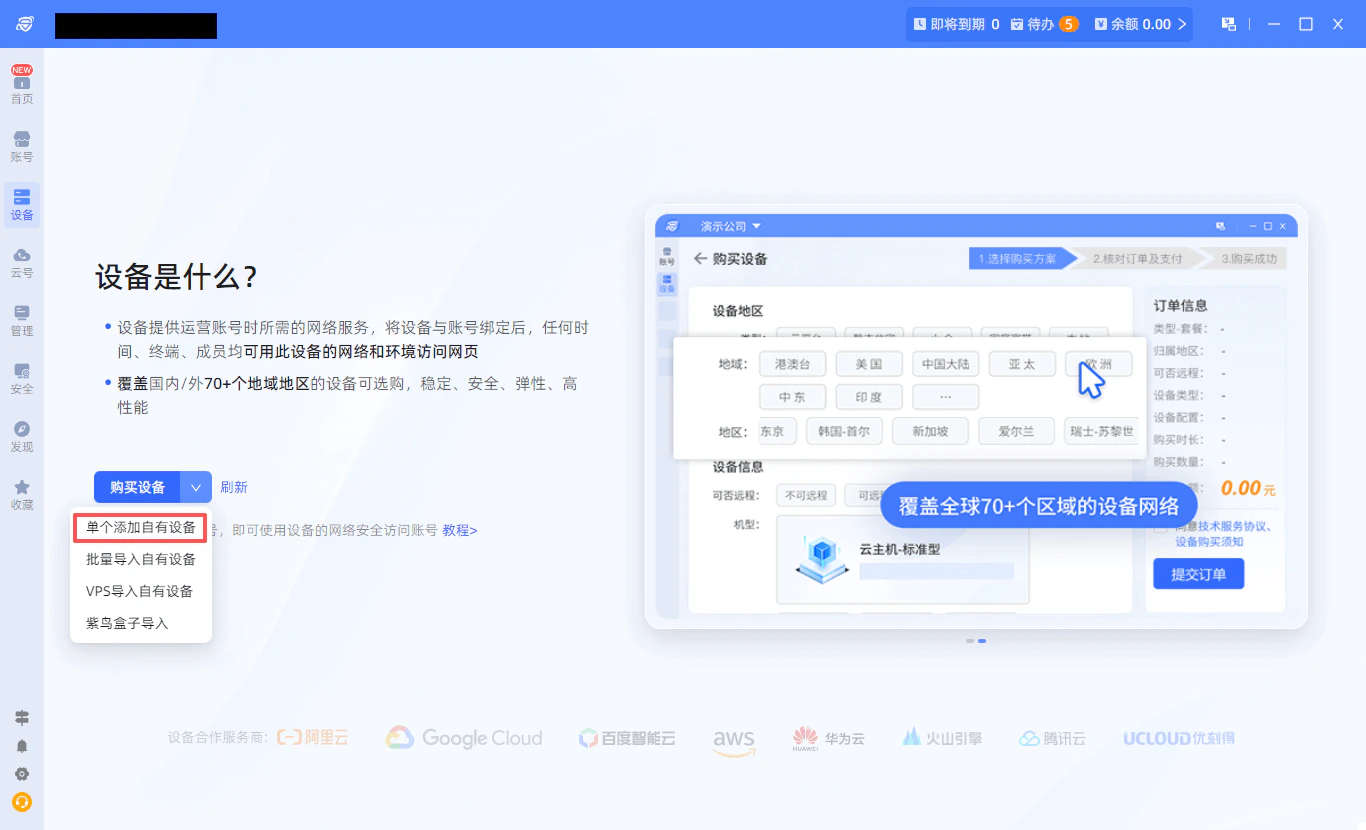
在设备管理界面中,点击 **添加自有设备** 按钮,开始配置新设备。
#### 步骤三:添加自有设备
在设备管理界面中,点击 **添加自有设备** 按钮,开始配置新设备。
 #### 步骤四:获取Iptuns代理信息
登录 [Iptuns代理平台](https://iptuns.com/),进入 **静态住宅代理** 页面,查看并复制您的代理信息(服务器地址、端口、账号、密码)。
#### 步骤四:获取Iptuns代理信息
登录 [Iptuns代理平台](https://iptuns.com/),进入 **静态住宅代理** 页面,查看并复制您的代理信息(服务器地址、端口、账号、密码)。
 #### 步骤五:配置代理类型与信息
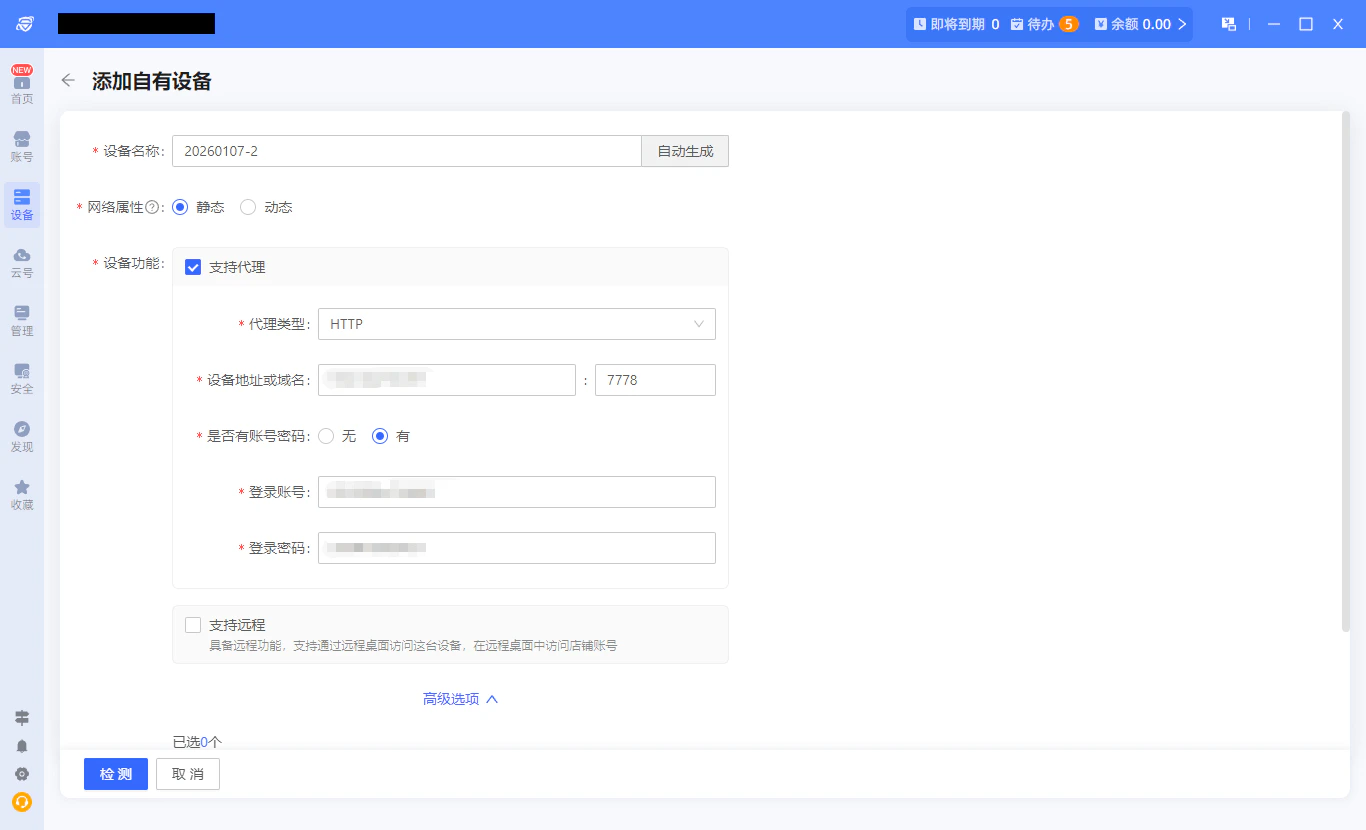
在设备功能配置中,找到 **支持代理** 选项,勾选并选择与Iptuns代理对应的协议类型。
**请注意:** Iptuns 目前支持 **HTTP** 和 **SOCKS5** 两种代理协议,请根据实际需求选择。
#### 步骤五:配置代理类型与信息
在设备功能配置中,找到 **支持代理** 选项,勾选并选择与Iptuns代理对应的协议类型。
**请注意:** Iptuns 目前支持 **HTTP** 和 **SOCKS5** 两种代理协议,请根据实际需求选择。
 #### 步骤六:填写代理信息并测试连通性
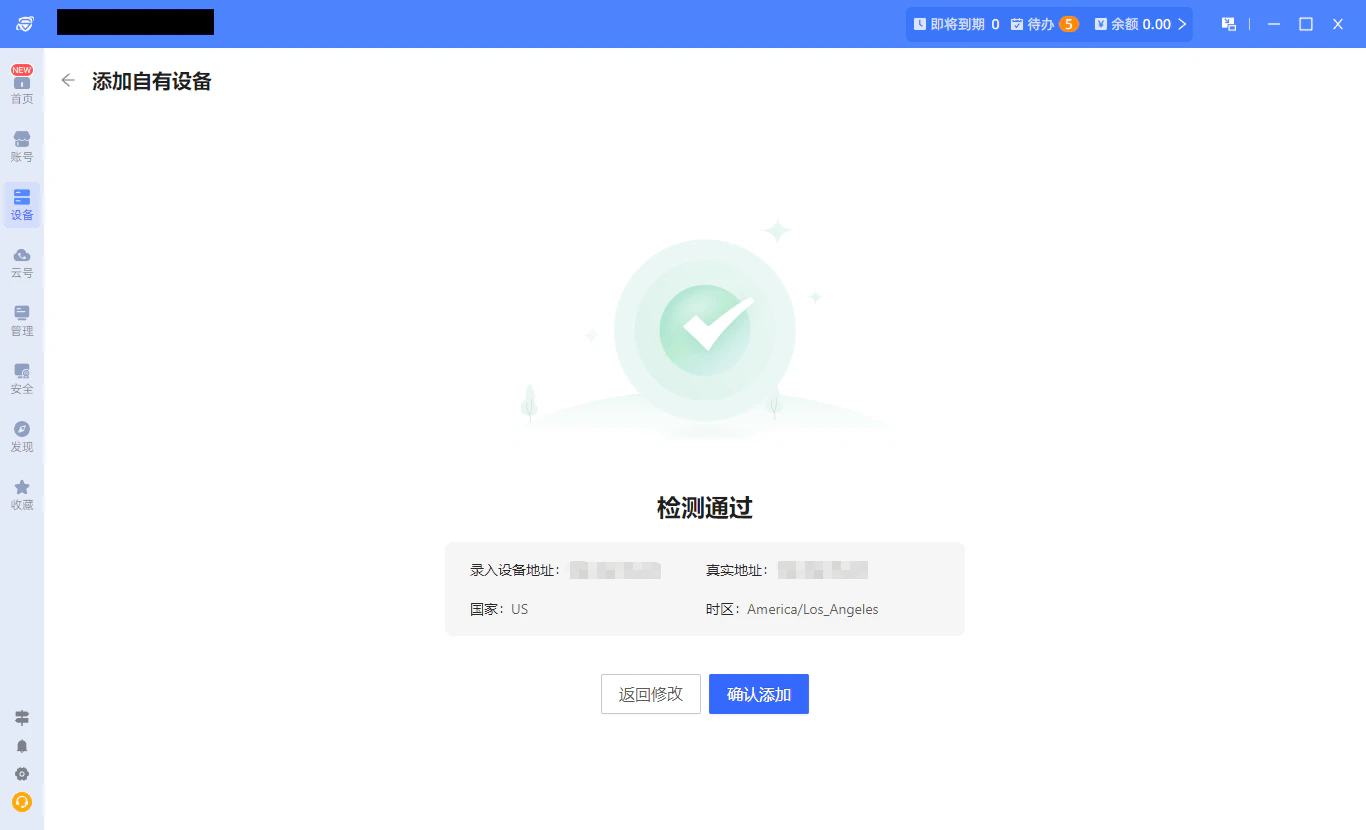
将获取的代理信息填入对应的输入框,然后点击 **检测** 按钮,测试代理IP的连通性。确认无误后,点击 **确认添加** 完成设备配置。您可以在 **设备 → 全部设备** 界面查看已配置的代理设备。
#### 步骤六:填写代理信息并测试连通性
将获取的代理信息填入对应的输入框,然后点击 **检测** 按钮,测试代理IP的连通性。确认无误后,点击 **确认添加** 完成设备配置。您可以在 **设备 → 全部设备** 界面查看已配置的代理设备。
 #### 步骤七:创建账号并绑定设备
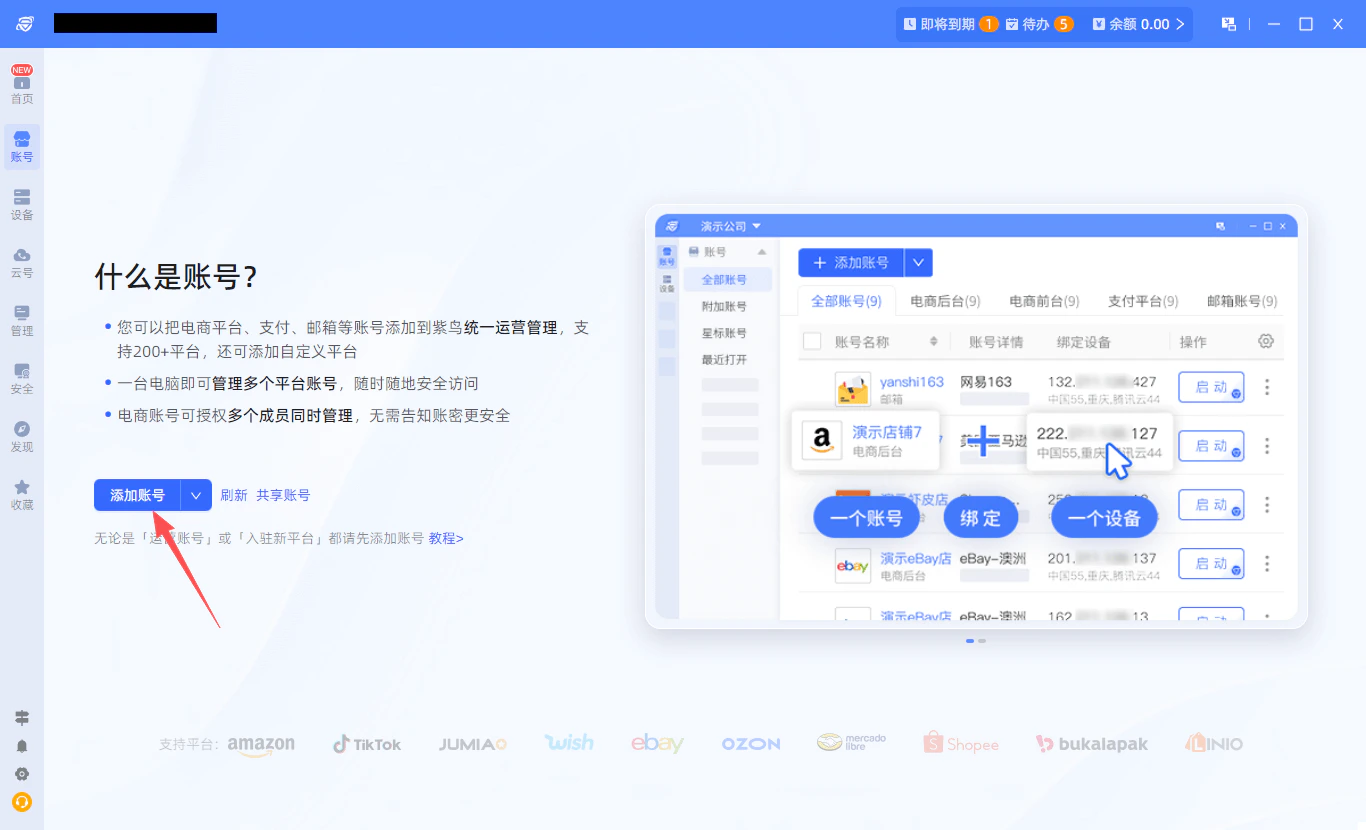
点击左侧导航栏的 **账号**,选择 **添加账号**。在弹出的窗口中:
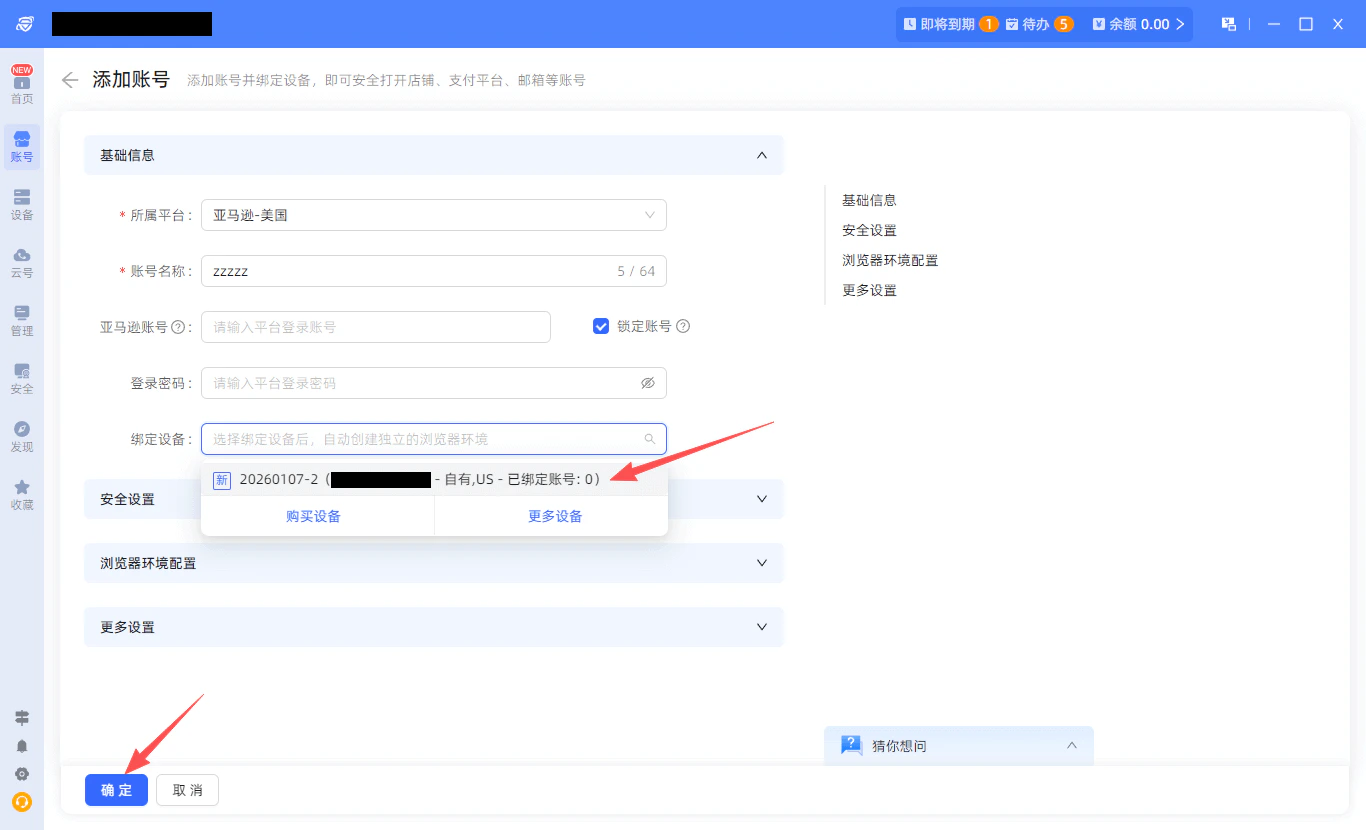
1. 选择目标平台
2. 自定义账号名称
3. 在 **绑定设备** 中选择刚刚创建的自有设备
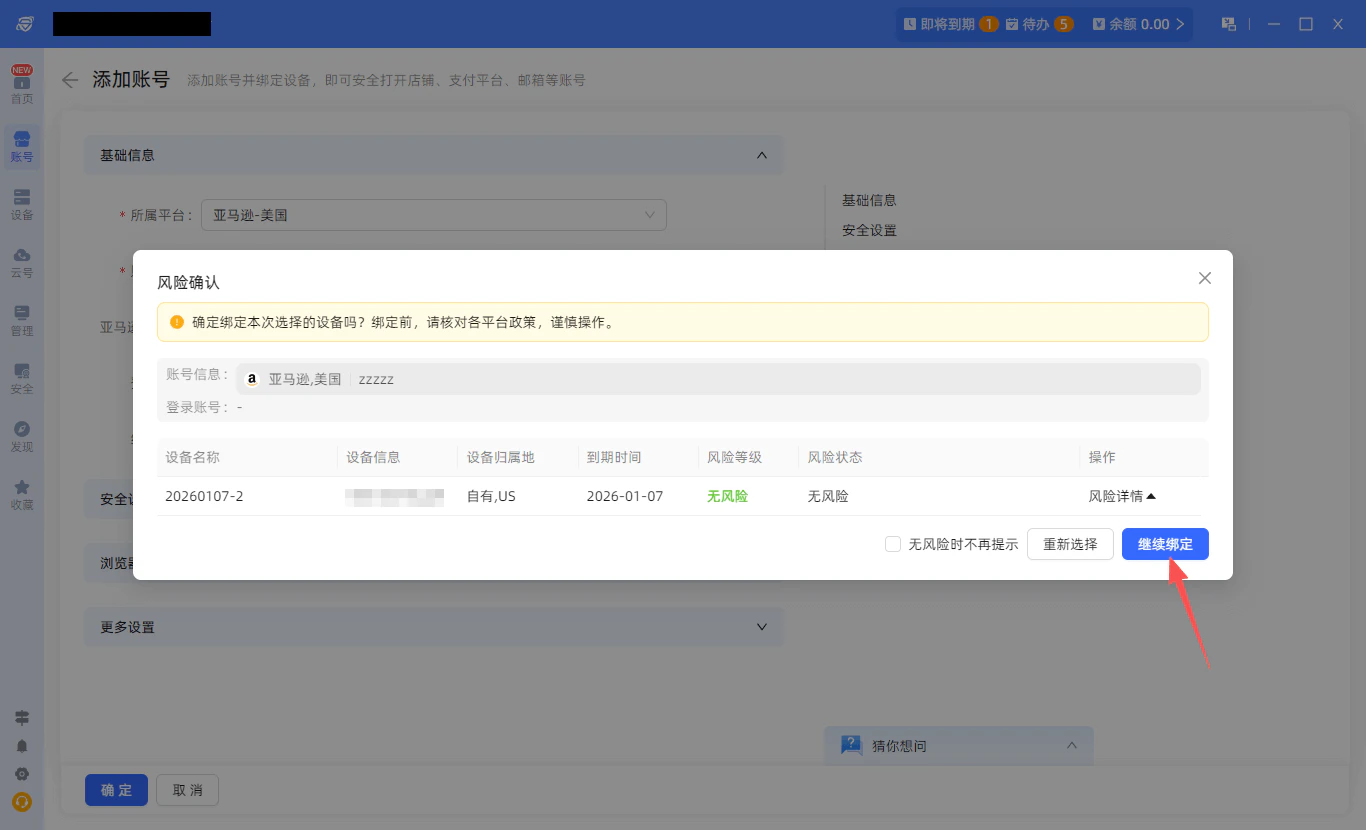
4. 点击 **确定**,并在风险提示中选择 **继续绑定**
#### 步骤七:创建账号并绑定设备
点击左侧导航栏的 **账号**,选择 **添加账号**。在弹出的窗口中:
1. 选择目标平台
2. 自定义账号名称
3. 在 **绑定设备** 中选择刚刚创建的自有设备
4. 点击 **确定**,并在风险提示中选择 **继续绑定**
 #### 步骤八:启动账号并访问浏览器
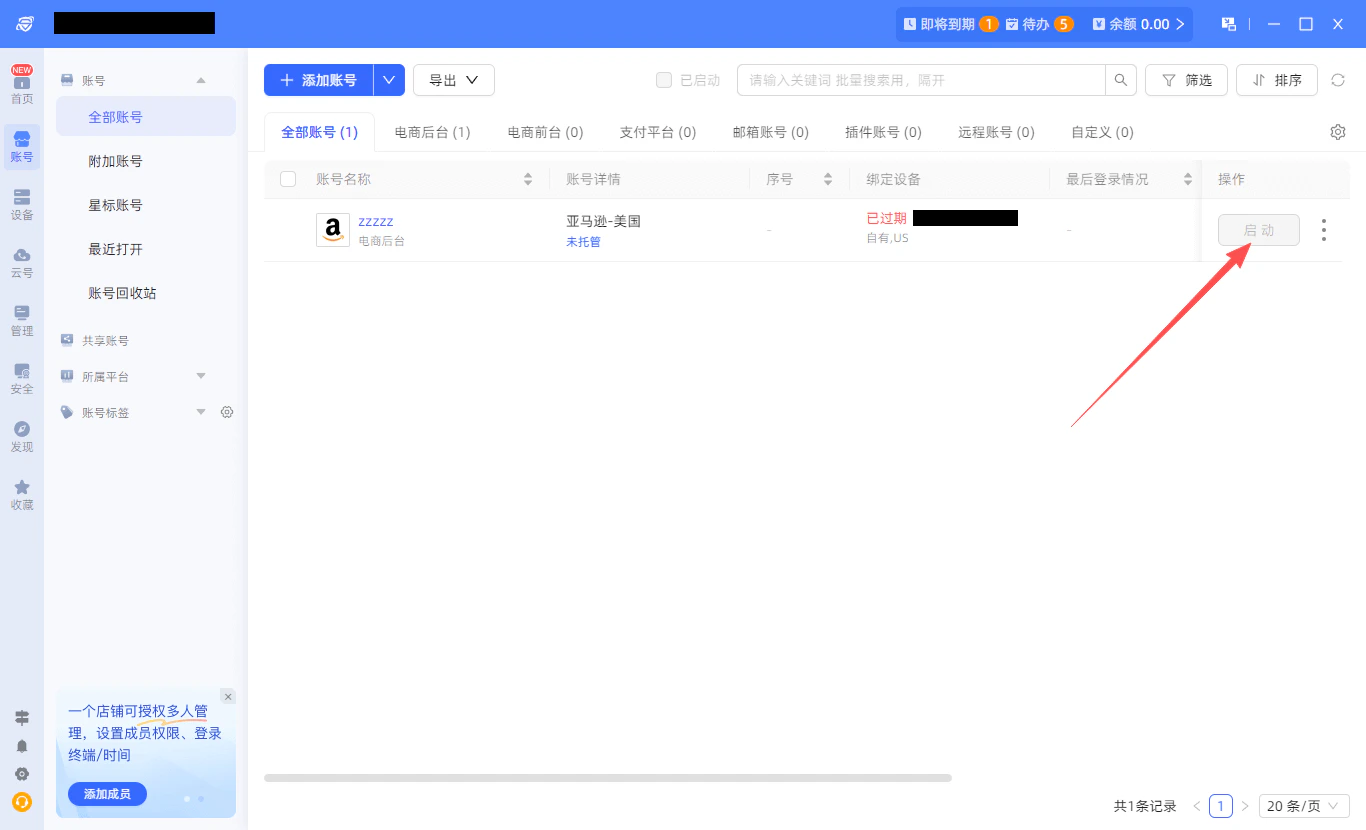
在 **账号 → 全部账号** 界面,找到刚刚创建的账号,点击 **启动** 按钮打开浏览器。
#### 步骤八:启动账号并访问浏览器
在 **账号 → 全部账号** 界面,找到刚刚创建的账号,点击 **启动** 按钮打开浏览器。
 #### 步骤九:验证代理IP
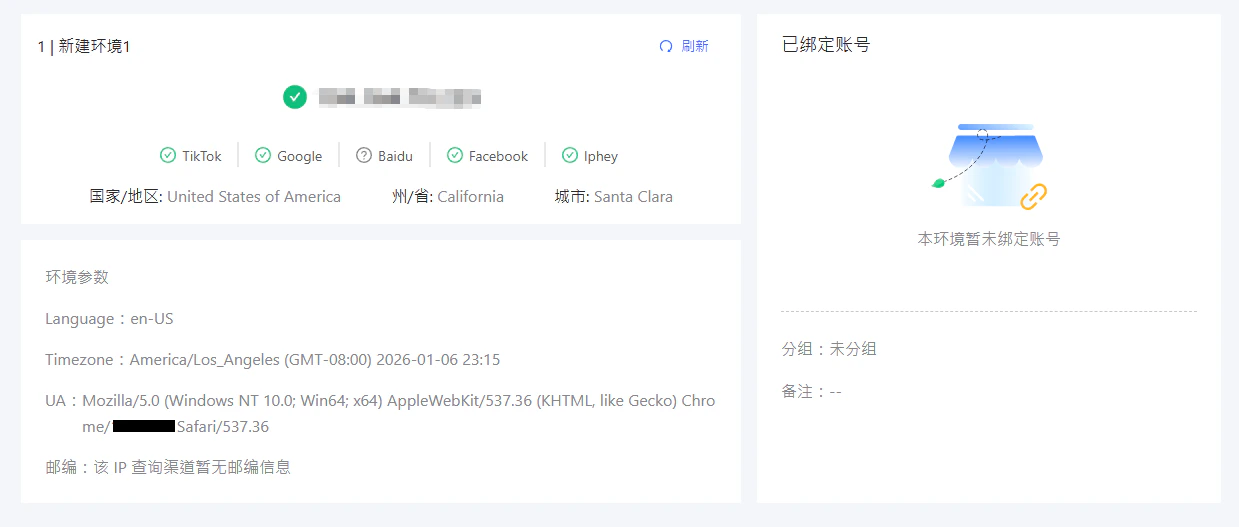
在打开的浏览器中访问IP检测网站,确认显示的IP地址与Iptuns提供的代理IP一致。
#### 步骤九:验证代理IP
在打开的浏览器中访问IP检测网站,确认显示的IP地址与Iptuns提供的代理IP一致。
 ✅ **至此,已成功在紫鸟指纹浏览器中配置了Iptuns代理IP,可开始进行安全、隔离的多账号操作。**